


Notes we’d send a friend
Updates from projects we're working on and lessons we're learning.
Sent when there's actually something to say.
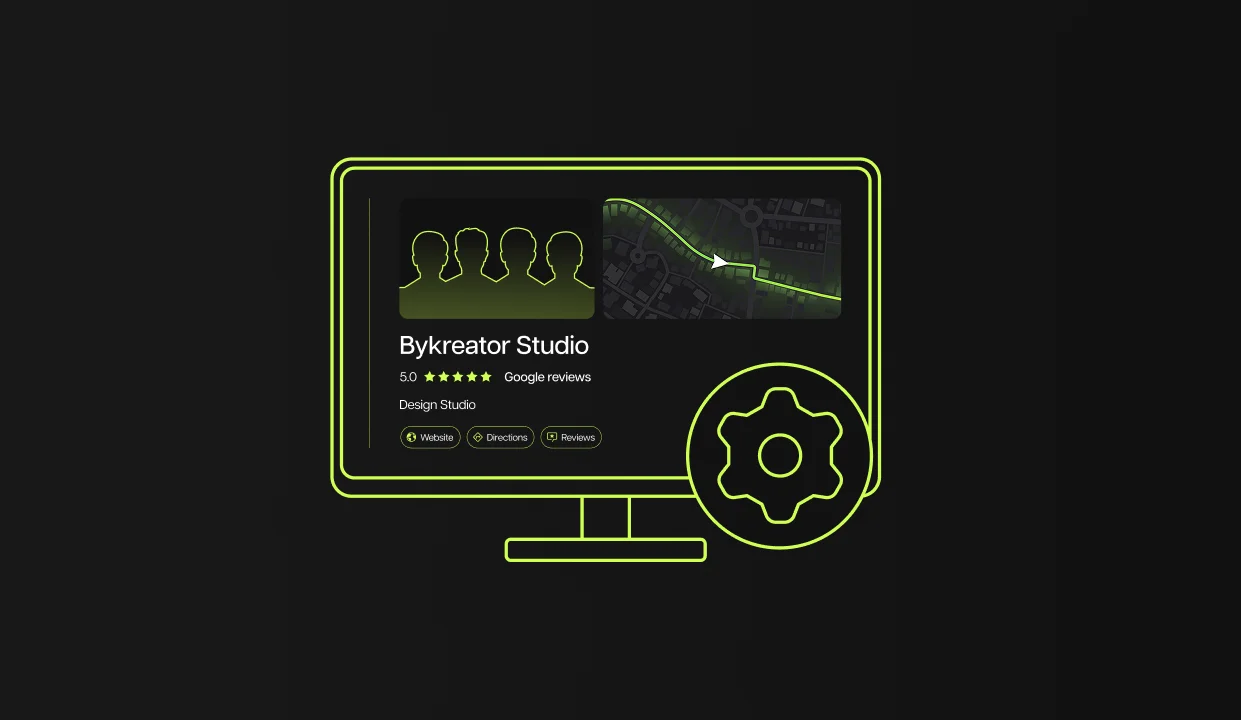
Learn how to set up Google Business Profile in just 14 steps and boost visibility, simplify navigation, and build trust for your local business.
If you're a local business owner in the US who wants to attract more customers, you need to be on Google Maps. Whether you're running a nail salon in Portland, a coffee shop in Seattle, or a law office in Austin, Google Business Profile is the fastest way for people to find you exactly when they're searching for services like yours.
This profile lists your business in the local directory that appears on Google Search and Maps. Google used to call this Google Places, so it might sound familiar if you've worked with local SEO strategies before.
Note: Throughout this guide, we'll use Portland-based examples for our screenshots and specific location references, but these steps work exactly the same for any city in the United States.
Google Business Profile is your listing in Google's directory — it appears when people search for local services on Google or Google Maps.
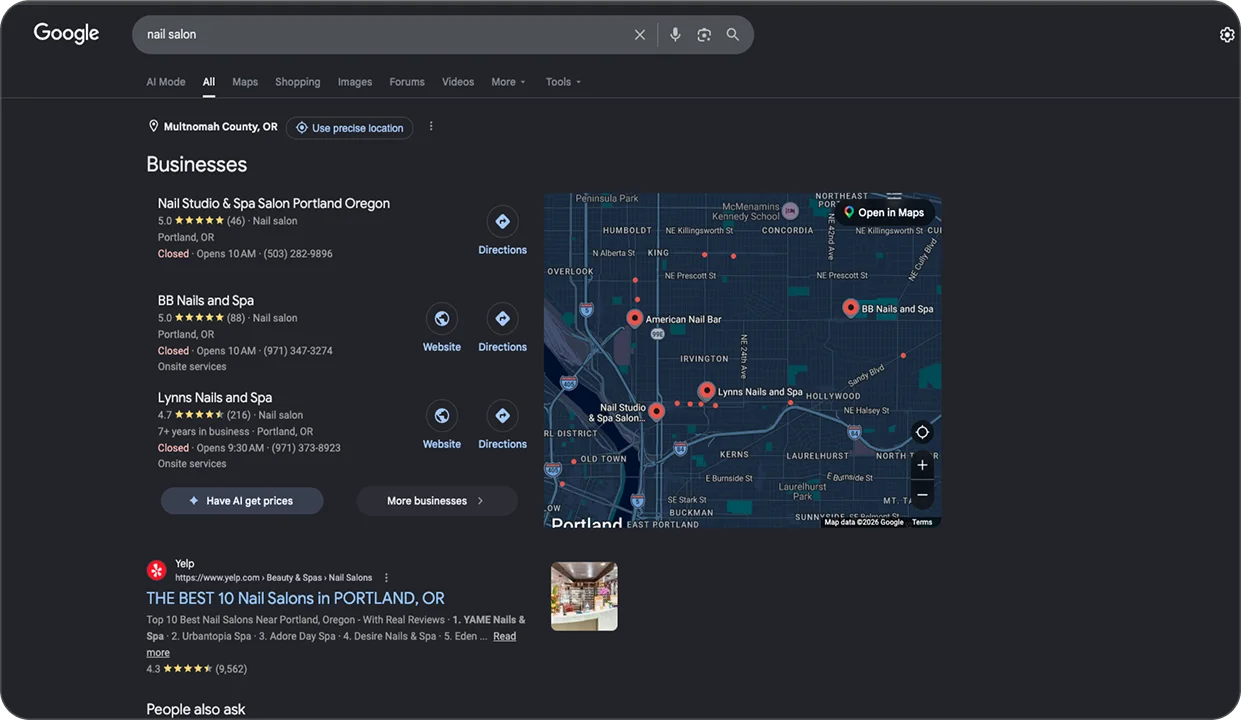
In short: your customers see everything they need without visiting your website.
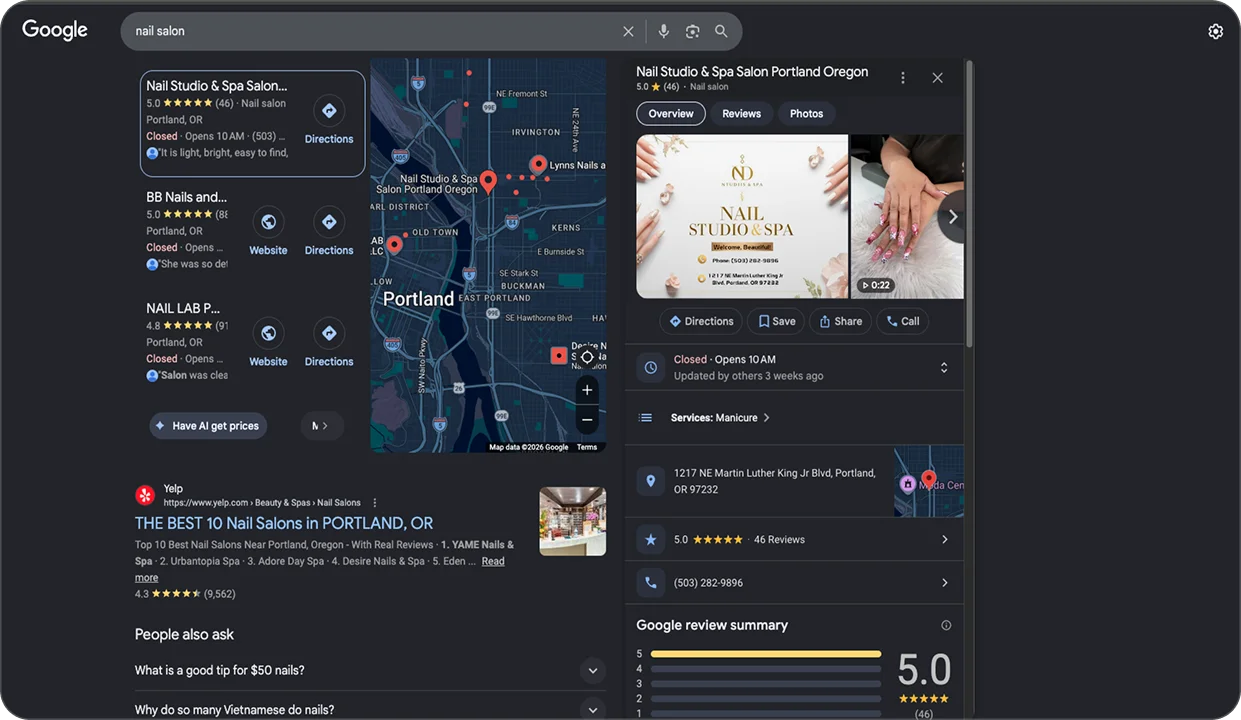
Imagine someone looking for a manicure or searching for a last-minute gift shop. They need a fast, reliable way to find the right place. That's where Google Business Profile comes in.
With an active profile, you get:
When someone searches "nail salon near me" or "pedicure Portland," Google displays three businesses at the top, above regular search results. These three spots are known as the Local Map Pack (the three most prominent local businesses on the map). To be there, you need an optimized profile.
Profiles are linked to Google Maps with one click — users get directions to you instantly.
Photos and reviews help people make decisions. These elements build trust and increase the chances they'll visit.
This article is a practical guide for creating a Google Business Profile — we'll go straight to setup, step by step.
But if you want a deep understanding first:
→ Read our complete strategic Google Business Profile guide
Without further delay, let's move to the steps. You won't need more than 20 minutes.
Prepare:
IMPORTANT: Not everyone can have a Google Business Profile. Online-only businesses, dropshipping stores, and virtual offices are immediately rejected.
To get started, you need a Google account to optimize your Google My Business or Google Business Profile. If you already have one, sign in. If not, create a new one.
Go to gmail.com and click "Create account" → choose "For managing my business".
PRO TIP: Use a business email (e.g., info@your-business.com or contact@your-business.com). If you don't have a business domain, create a new Gmail specific to your business: your-business@gmail.com. Don't use personal Gmail because it complicates access transfer and looks less professional.
Your business might already have a profile, even if you didn't create it. If it exists, claim ownership so you can control and optimize the information.
To do this, go to: business.google.com/create. Type your business name and see what happens.
.webp)
If you didn't find your business profile in Step 2, it means you don't have a profile yet. That's actually good — you're starting from scratch with no complications about takeover and ownership.

Once the business profile is created, enter your name and primary business category.
Enter ONLY the name. No keywords, city, or marketing phrases.
❌ "Beauty Studio Nail Salon Best Manicure Pedicure Portland"
✅ "Beauty Studio Nail Salon"
Google automatically recognizes keyword stuffing and suspends profiles. The name must be identical on:

Category is the most important factor for positioning in local searches. When someone searches "nail salon Portland," Google looks at your primary category to decide whether to show you.
Be specific:
IMPORTANT: The primary category carries the most weight for ranking. In Step 14, you'll be able to add up to 9 additional categories that expand visibility. But don't confuse them with services you add in Step 10.
Google will prompt you to add your location. How you fill it depends on your business type.
Examples: Nail salon, hair salon, restaurant, dental office, retail store, office
What to do: Enter the exact address — users will see the location on the map and get direct directions.
Examples: Plumber, electrician, delivery, house painter, mobile hair stylist, mobile beauty
What to do:
IMPORTANT: Don't enter a home address if you work from home and go to customers! This leads to immediate profile suspension.

If you marked that you go to customers, Google asks you to specify cities or regions you cover.
TIP: Be realistic. Local ranking works best when you're close to the user.
If you cover only Portland, don't add Seattle because:
.webp)
Enter:
TIP: Younger users (18-35) prefer messages over calls. Adding WhatsApp or SMS options makes it easy for them to reach you quickly, which means more inquiries and bookings.

Follow the remaining on-screen steps until you finish and click "Done". Check that all information is accurate; the verification process (Step 9) depends on it. This information also forms the foundation of your profile, so you want users to see accurate data right away.
Now that you've entered all the information, decide whether you want to verify immediately or later. Choose the option on screen and follow the instructions.
IMPORTANT: Google automatically determines the verification method — you can't choose. It depends on:
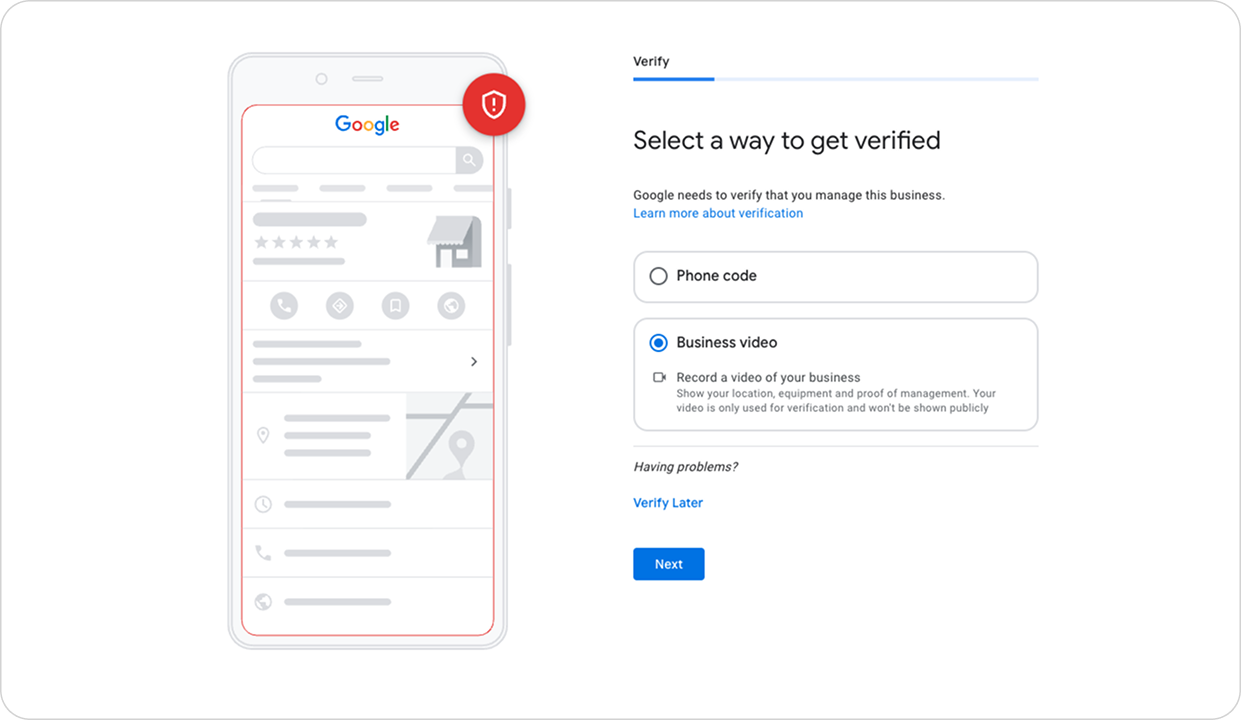
For most new profiles, Google requires video verification as the primary (often only) method.
Google requires one continuous shot showing:
EXAMPLE for a nail salon: Start filming outside the salon — show the "Beauty Studio Nail Salon" sign, street number, enter through the doors (show keys), go inside and show manicure work stations, UV lamps, product shelves. 45 seconds, no pauses.

Most common reasons:
Solution: Google allows several attempts. After 3-4 failed attempts, you get a "No more verification methods available" message → contact Google support.
CRITICAL: DO NOT CREATE A NEW PROFILE if the first one is rejected! That only makes things worse, creates a duplicate business profile, and leads to permanent suspension.
If the profile already has an owner, you'll need to request ownership:
After choosing your primary category in Step 4 (e.g., "Nail Salon"), Google will automatically prompt you to add specific services. Google displays predefined services for your category — mark all services you offer. If your service isn't on the list, click "Add custom service" and enter the name.
When someone searches "gel nails Portland," Google displays businesses that have that specific service listed — not just the "Nail Salon" category.

TIP: Add at least 5-10 services with keywords people search for. The more specific, the better ranking.
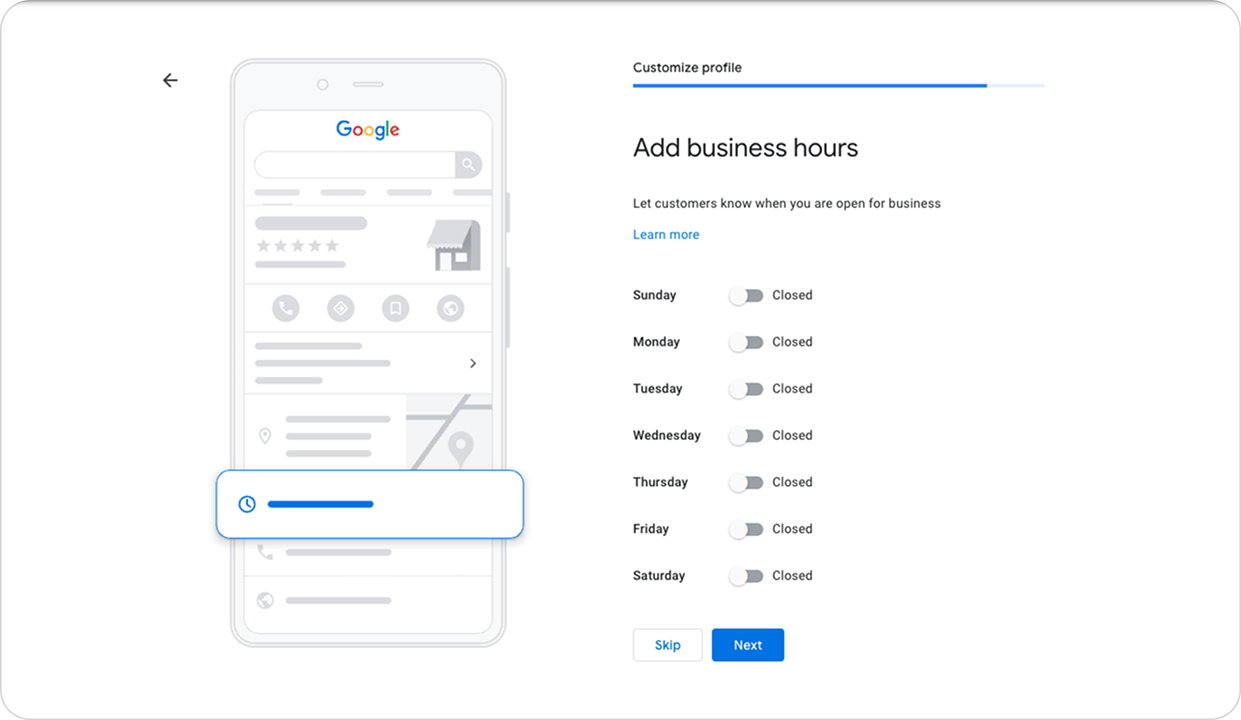
Enter exactly when your business operates — Google shows an "OPEN/CLOSED" live indicator directly on the profile, and incorrect hours mean frustrated customers who arrive when you're closed and negative reviews.
The business description appears in the "From the business" section on your profile. This is your opportunity to briefly explain what you offer, what makes you special, and why customers should choose you.

"Beauty Studio Nail Salon offers professional manicure, pedicure, and gel nail services in downtown Portland. We use premium Essie and OPI brands. Equipment sterilization after each customer. Reservations by phone or online. Open Monday-Saturday 9am-8pm."
Tip: Google offers AI-generated descriptions (available for certain regions and languages) — you can try this option if you need inspiration.
Photos are the most important visual element of your business profile. Profiles with images get more clicks and more calls than those without.
Google requires two types of photos during setup:
Add a recent photo of your business facade — this helps customers easily find you in the real world.
What should be in the photo:
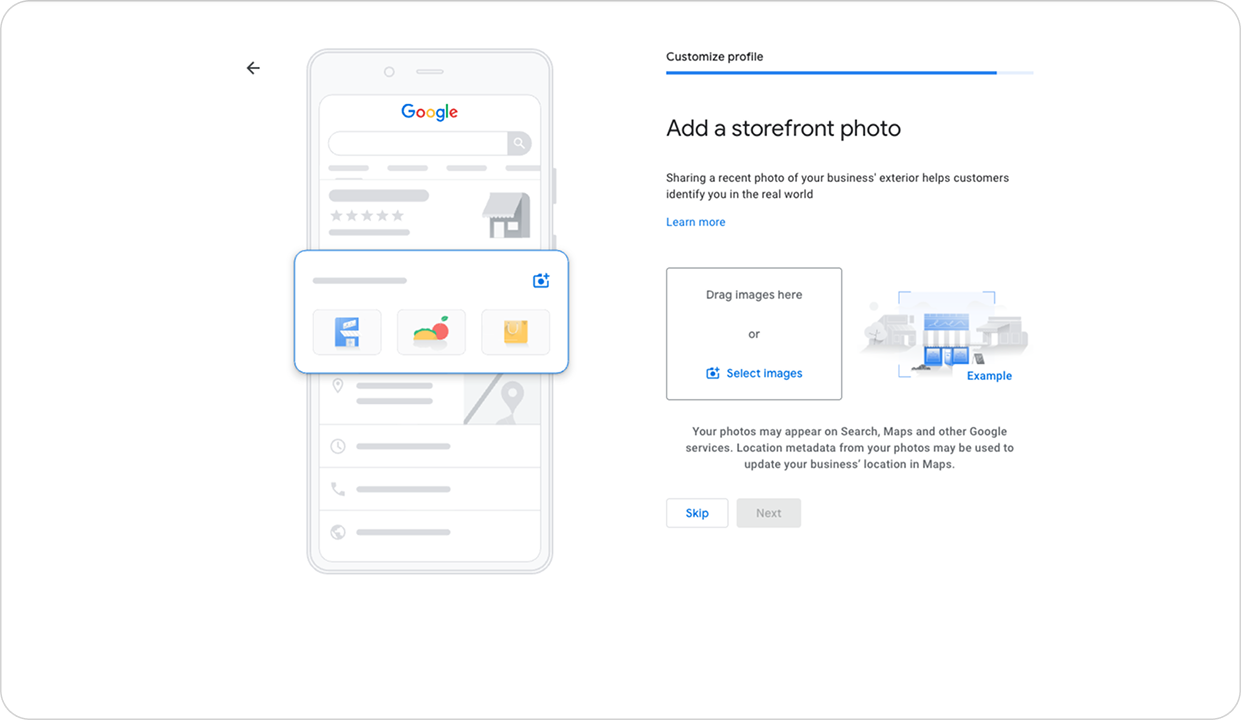
Add at least 4-5 photos showing:

TIP: Regularly add new photos (monthly) — profiles with fresh photos rank better.
After completing all steps, check once more that you've entered everything correctly and the profile is fully optimized.
✓ Business name — only name, no keywords
✓ Category — primary + additional (up to 9)
✓ Address and location — accurate or hidden (for SAB)
✓ Phone — local number + messaging options (SMS/WhatsApp)
✓ Website — added or Instagram/Facebook link
✓ Services — minimum 5-10 services with keywords
✓ Business hours — accurate for each day ✓ Business description — up to 750 characters
✓ Photos — minimum 5 (exterior + interior + work)
Reviews on Google Business Profile are a direct ranking factor in local searches. Many don't understand: it's not just about getting reviews, but responding to them.
Profiles with active review responses rank significantly better in local search results.
Creating a profile is just the beginning — regular maintenance is key for maximum effectiveness and improved visibility.
Most owners create a profile and never update it again. That's like opening a store and never cleaning the windows. Result: you lose customers who arrive at the wrong time or find outdated information.
Keeping your profile up-to-date ensures customers always see accurate information:
Regular updates also signal to Google that your business is active, which can positively impact position in local searches.
Active profiles = higher position on the map.
Incorrectly listed hours can cause frustration. Customer arrives, you're closed — they'll likely choose a competitor with updated information.
Outdated information often results in bad experiences, triggering negative reviews on your profile.
Google can rank your profile lower in search results if it detects:
TIP: Active profiles get higher positions because they signal a reliable, operating business.
Congratulations! Now you know how to create a Google Business Profile and secure a better position in local searches exactly when people are looking for services like yours.
Creating a profile is an excellent first step, but to really stand out in local searches — you need regular maintenance, a review strategy, and additional SEO optimization.
If you're interested in how to improve ranking, keep an active profile, and attract more customers — feel free to check out our other blogs and tips on local SEO.
Creating and managing a Google Business Profile is completely free. Google doesn't charge for the profile itself or for appearing in local search results and Google Maps.
Video verification typically takes 3-5 business days. If you're verifying by postcard (less common in 2026), it can take 7-14 days for the postcard to arrive, and then you'll need to enter the code from the postcard to complete verification.
Yes, if you're a Service Area Business (plumber, electrician, mobile beauty, etc.). You'll hide your address and mark the areas you serve. However, purely online businesses with no in-person customer contact cannot have a Google Business Profile.
Yes, but Google will review the change. If the name change is legitimate (rebranding, legal name change), it will be approved. If Google suspects keyword stuffing or manipulation, the change will be rejected or the profile may be suspended.
Most common reasons: (1) Profile isn't verified yet, (2) Information is inconsistent with your website or other online listings, (3) You're in a highly competitive area and your profile isn't optimized, (4) Your profile was suspended due to guideline violations.
No. Google's guidelines strictly prohibit multiple profiles for the same business at the same location. This is a common reason for profile suspension. If you have multiple locations, each physical location can have its own profile.
Ideally, add new photos or posts at least once a month. Respond to reviews within 24-48 hours. Update business hours immediately when they change (especially during holidays). Active profiles rank better than neglected ones.
Click "Request access" in the Google Business Profile dashboard. The current owner has 3-7 days to respond. If they don't respond, you can take over the profile. If they reject your request, you'll need to file an appeal with Google and provide proof of business ownership (business license, utility bill, tax documents, etc.).
Updates from projects we're working on and lessons we're learning.
Sent when there's actually something to say.